
Create a Sudoku Solver Using Python
Hello coder, welcome to the codewithrandom blog. In this blog, we will Create a Sudoku Solver Using Python. We will be using the backtracking algorithm to solve the puzzle. The backtracking algorithm is a brute-force algorithm that works by trying out all possible solutions and backtracking when it reaches a dead end.
What is Sudoku Solver ?🤔🤔
Sudoku is a logic-based puzzle game that involves filling a 9×9 grid with numbers from 1 to 9, with each row, column, and 3×3 subgrid containing each number only once. The game starts with a partially filled grid, and the objective is to fill the remaining empty cells with the correct numbers.
Now, let’s get started on building our Sudoku Solver using Python.
step-by-step guide on how to build a Sudoku Solver using Python:
step 1: open any python code Editor.
step 2: Required Modules.
For this Sudoku Solver project, we need to install Tkinter Gui. You can install these packages in your terminal.
$ pip install tk
step 3: Copy the code for Sudoku Solver using Python, which I provided Below in this article, and save it in a file named “main.py” (or any other name you prefer).
step 4: Run this python file main.py to start the Sudoku Solver.
Complete Source Code For the Sudoku Solver (copy the code and run )👇👇👇
import tkinter as tk
from tkinter import font
# from time import sleep
import random

count = 0

class Sudoku:
    #Canvas background
    canvas_bg = "#fafafa" #impure white
    #Grid lines
    line_normal = "#4f4f4f" #dark grey
    line_thick = "#000000" #pure black
    #cell highlight box
    hbox_green = "#15fa00" #light green
    hbox_red = "#d61111" #red

    def __init__(self, master):
        #A record of all cells and their attributes
        self.grid = {}
        #A small edit window which will be initilized and displayed on click
        self.e = None
        self.canvas_width = 300
        self.canvas_height = 300
        #The sudoku grid
        self.canvas = tk.Canvas(master,bg=self.canvas_bg, width=self.canvas_width, height=self.canvas_height)
        self.t = tk.Entry(self.canvas)
        self.t.bind("<KeyRelease>",self.keyPressed)
        self.canvas.grid(columnspan=3)
        self.canvas.bind("<Button 1>",self.click)
        #Solve button
        self.btn_solve = tk.Button(master,text='Solve', command=self.wrapper, width=8)
        self.btn_solve.grid(row=1, padx=5, pady=5)
        #Generate button
        self.btn_gen = tk.Button(master,text='Generate', command=self.Generate, width=8)
        self.btn_gen.grid(row=1, column=1, padx=5, pady=5, sticky=tk.E)
        #Difficulty selector
        self.set_difficulty = tk.IntVar(master,1)
        self.difficulty_selector = tk.OptionMenu(master,self.set_difficulty,1,2,3,4,5)
        self.difficulty_selector.grid(row=1, column=2, pady=5, sticky=tk.W)
        #Individual cell width and height
        self.cell_width = self.canvas_width/9
        self.cell_height = self.canvas_height/9
        #Draw vertical lines
        for x in range(1,9):
            width=1
            fill=self.line_normal
            if(x%3==0):
                #Draw thicker black lines for seperating 3x3 boxes
                width=2
                fill=self.line_thick
            else:
                #Draw normal thin dark-grey lines
                width=1
                fill=self.line_normal
            self.canvas.create_line(self.cell_width*x, 0, self.cell_width*x, self.canvas_height, width=width, fill=fill)
        #Draw horizontal lines in the same way
        for y in range(1,9):
            width=1
            fill=self.line_normal
            if(y%3==0):
                width=2
                fill=self.line_thick
            else:
                width=1
                fill=self.line_normal
            self.canvas.create_line(0, self.cell_height*y, self.canvas_width, self.cell_height*y, width=width, fill=fill)

    def click(self, eventorigin):
        x = eventorigin.x
        y = eventorigin.y
        #Calcilate top-left x,y coords of cell clicked by mouse
        rect_x = int(x/self.cell_width)*self.cell_width
        rect_y = int(y/self.cell_height)*self.cell_height
        #Coords for drawing a square to highlight clicked cell
        coords = [rect_x,rect_y,rect_x+self.cell_width,rect_y,rect_x+self.cell_width,rect_y+self.cell_height,rect_x,rect_y+self.cell_height]
        # For some stupid reason, this line below didn't work as expected. So I had to choose the hard way.
        # h_box = self.canvas.create_rectangle(rect_x, rect_y, self.cell_width, self.cell_height, outline="#15fa00", width=3)
        #Get cell info
        editable = self.getCell(x/self.cell_width,y/self.cell_height)[1]
        if editable:
            #It's a cell you can edit
            #Show a green box highlight and edit
            h_box = self.canvas.create_polygon(coords, outline=self.hbox_green, fill='', width=3)
            self.edit(rect_x, rect_y)
        else:
            #It's a cell containing a clue number, cannot edit
            #Show a red box highlight
            h_box = self.canvas.create_polygon(coords, outline=self.hbox_red, fill='', width=3)
        self.canvas.after(200,lambda : self.canvas.delete(h_box))

    def edit(self,cordx:int,cordy:int):
        #Create a entry inside a small canvas window
        #make sure it's actuall initilized before deleting it
        if self.e is None:
            #Not initilized, else block skipped
            pass
        else:
            #Canvas window initilized, delete and reset it to current position
            self.canvas.delete(self.e)
        #Create a mini edit window that just fits the cell
        self.e = self.canvas.create_window(cordx+1,cordy+1,window=self.t,width=self.cell_width-1,height=self.cell_height-2,anchor=tk.NW)
        #Clean up
        self.t.delete(0,tk.END)
        self.t.focus_set()

    def keyPressed(self, event):
        val = self.t.get().strip()
        try:
            #If input is a number between 1-9, this won't raise any errors
            val = int(val)
            if(val>9 or val<0):
                raise ValueError
        except ValueError:
            print("Invalid input!")
            self.t.delete(0,tk.END)
        else:
            #Get x,y coords of edit window and calculate cell row,column values
            x,y = (self.t.winfo_x())/self.cell_width,(self.t.winfo_y())/self.cell_height
            #Update cell with new value
            self.updateCell(val,x,y)
            self.canvas.delete(self.e)

    def updateCell(self,value,x,y,editable=True):
        #Get cell information stored in dict self.grid
        t = self.getCell(x,y)
        #Update values
        t[0] = value
        t[1] = editable
        text=value
        if value==0:
            text=' '
        #Update display value by using item id
        self.canvas.itemconfigure(t[2],text=text)
        self.canvas.update()
        #Update the dict
        self.grid[(x,y)] = t

    def getCell(self, x:int, y:int):
        #Returns info of cell at 'x' row 'y' column
        x=int(x)
        y=int(y)
        val = self.grid[(x,y)]
        return val

    def populate(self, X:[[]]):
        #Populates the sudoku grid with given 9x9 matrix and also store it in a dict
        c = self.canvas
        #The bookeeping is managed as shown below
        '''Dict->(X,Y) : [value,True/Flase,id]
                   ^        ^        ^     ^
              X,Y coords  value  editable  object id'''
        for i in range(9):
            for j in range(9):
                #Calculate x,y position of center of cell
                text_x = j*self.cell_width+self.cell_width/2
                text_y = i*self.cell_height+self.cell_height/2
                val = X[i][j]
                if val == 0:
                    t = c.create_text(text_x,text_y,text=' ',font=('Times', 14))
                    self.grid[(j,i)] = [ val, True, t]
                else:
                    t = c.create_text(text_x,text_y,text=val,font=('Times', 15, 'bold'))
                    self.grid[(j,i)] = [ val, False, t]

    def clearGrid(self):
        #Utility function to clear the grid, this will also wipe out the puzzle from memory
        for i in range(9):
            for j in range(9):
                self.updateCell(0,i,j)

    def getValue(self, row:int, col:int):
        #Return value at row, column
        return self.grid[(row,col)][0]

    def printGrid(self):
        #Utility function to print the grid
        for i in range(9):
            x=[]
            for j in range(9):
                x.append(self.getValue(j,i))
            print(x)

    def wrapper(self):
        #A small wrapper funtion that performs some small tasks before solving
        global count
        #Reset the count
        count = 0
        #Delete edit boxes if any
        self.canvas.delete(self.e)
        #Lock the buttons and start solving
        self.btn_gen.configure(state='disabled')
        self.btn_solve.configure(state='disabled')
        self.solve()
        #After solving, set the buttons back to normal
        self.btn_gen.configure(state='normal')
        self.btn_solve.configure(state='normal')

    def solve(self):
        global count
        #Start by finding an empty cell
        x,y = self.findEmpty()
        #If no cells are empty, our job is done
        if (x,y)==(None,None):
            #Print the no. of times solve() was called
            print("Recursed", count, "times.")
            return True

        #Keep a track of the number of function calls
        count+=1

        #Try putting in numbers from 1-9
        for i in range(1,10):
            #Check if number will satisfy sub-grid rule and row-column rule
            if self.is_SubGrid_Safe(i,x,y) and self.is_Cell_Safe(i,x,y):
                #Yes, then update the cell
                self.updateCell(i,x,y,False)
                # self.canvas.after(10,self.updateCell(i,x,y))
                #Now repeat for remaining cells
                nxt = self.solve()
                if nxt:
                    #All went well, so return true
                    return True
                else:
                    #The value chose earlier is wrong, so backtrack
                    self.updateCell(0,x,y,True)

        #Cannot find any number, so return false (backtrack)
        return False

    def Generate(self, level=1):
        #Disable the buttons
        self.btn_solve.configure(state='disabled')
        self.btn_gen.configure(state='disabled')
        #Generate random puzzle with difficulty level 'level'
        #Start by generate diagonal sub-grids with randomly shuffled nos from 1-9
        nos = list(range(1,10))
        rand_grid = []
        for i in range(9):
            if i%3==0:
                random.shuffle(nos)
            t=[0]*9
            for j in range(3):
                t_pos = int(i/3)*3+j
                n_pos = (i%3)*3
                t[t_pos] = nos[n_pos+j]
            rand_grid.append(t)
        #Clean up
        self.clearGrid()
        #Cover up the window with a label
        cover_label = tk.Label(text="GENERATING",font=('Arial',16))
        cover = self.canvas.create_window(0,0,window=cover_label,width=self.canvas_width,height=self.canvas_height,anchor=tk.NW)
        #Populate with the diagonal sub-grids
        self.populate(rand_grid)
        #Solve to get the completed puzzle
        self.solve()
        global count
        #Reset count
        count = 0
        #Remove random numbers based on set difficulty level, this needs work. Any Math wizards around?
        level = self.set_difficulty.get()
        if level<=2: level+=2
        for i in range(9):
            for j in range(9):
                remove = level>random.randint(1,5)
                if remove:
                    self.updateCell(0,i,j)

        #Set the fonts right
        g=self.grid
        for i in g.keys():
            cell = g[i]
            if cell[1]:
                #Editable cells have Times-14-regular font
                self.canvas.itemconfigure(cell[2],font=('Times',14))
            else:
                #Non-editable cells have Times-15-bold font
                self.canvas.itemconfigure(cell[2],font=('Times',15,'bold'))
        #Finally, lift the cover for the user to see the puzzle
        self.canvas.delete(cover)
        #and set the buttons back to normal
        self.btn_solve.configure(state='normal')
        self.btn_gen.configure(state='normal')

    def findEmpty(self):
        #Utility function to find an empty cell
        for i in range(9):
            for j in range(9):
                cell_val = self.getCell(j,i)[1]
                if cell_val:
                    return (j,i)
        return (None,None)

    def is_SubGrid_Safe(self,val,x,y)->bool:
        #Checks if the sub-grid rule is satisfied for the number 'val' at given row 'x',column 'y'
        #Figure out the sub grid x,y
        sgrid_x = int(x/3)*3
        sgrid_y = int(y/3)*3
        #Search the sub-grid
        for i in range(sgrid_x,sgrid_x+3):
            for j in range(sgrid_y,sgrid_y+3):
                #Check only non-editable cells, ignore cells edited by user
                if val==self.getValue(i,j) and not self.getCell(i,j)[1]:
                    #This number already exists, rule violated
                    return False
        #No duplicate number found in sub-grid, rule intact
        return True

    def is_Cell_Safe(self,val,x,y)->bool:
        #Check if the number 'val' already exists in the row 'x' or column 'y'
        for i in range(9):
            #Check only non-editable cells, ignore cells edited by user
            if val==self.getValue(x,i) and not self.getCell(x,i)[1]:
                return False
            if val==self.getValue(i,y) and not self.getCell(i,y)[1]:
                return False
        #Row-column rule intact
        return True


####################################Sudoku Solver using Python
master = tk.Tk()
master.title("PyDoku")
master.resizable(False, False)
game=Sudoku(master)
ex1= [
    [3, 0, 6, 5, 0, 8, 4, 0, 0],
    [5, 2, 0, 0, 0, 0, 0, 0, 0],
    [0, 8, 7, 0, 0, 0, 0, 3, 1],
    [0, 0, 3, 0, 1, 0, 0, 8, 0],
    [9, 0, 0, 8, 6, 3, 0, 0, 5],
    [0, 5, 0, 0, 9, 0, 6, 0, 0],
    [1, 3, 0, 0, 0, 0, 2, 5, 0],
    [0, 0, 0, 0, 0, 0, 0, 7, 4],
    [0, 0, 5, 2, 0, 6, 3, 0, 0]
    ]
#Here's an extreme puzzel, ref : https://www.sudokuwiki.org/Daily_Sudoku
ex2=[
    [0, 5, 0, 0, 0, 0, 0, 0, 0],
    [3, 0, 8, 0, 7, 0, 2, 0, 0],
    [0, 0, 9, 3, 0, 6, 8, 0, 0],
    [0, 8, 0, 0, 0, 9, 5, 0, 0],
    [9, 0, 0, 0, 0, 0, 0, 0, 1],
    [0, 0, 3, 8, 0, 0, 0, 9, 0],
    [0, 0, 6, 5, 0, 7, 3, 0, 0],
    [0, 0, 1, 0, 4, 0, 6, 0, 7],
    [0, 0, 0, 0, 0, 0, 0, 4, 0]
    ]

game.populate(ex1)
tk.mainloop()
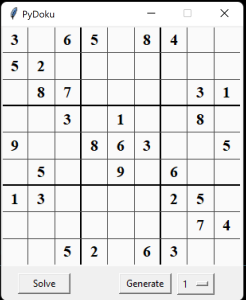
Output for the Sudoku Solver 👇👇
conclusion
Hurray! You have successfully Build a Sudoku Solver using Python. creating a Sudoku Solver using Python is a great way to challenge your programming skills and create a useful tool for solving Sudoku puzzles. With this tutorial, you should now have a good understanding of how to build a basic Sudoku Solver using Python. You can further customize and improve the solver by adding additional features such as error checking, difficulty levels, and user interfaces. Hope you enjoyed building Sudoku Solver using Python! Visit our homepage and you get lot’s of projects💝
#Sudoku Solver using Python